Desk fit, clarity, field of view, and curve matching
Monitor Viewing Distance Calculator
Compare ergonomic banding, pixel-acuity limits, monitor width geometry, and desk depth so your work or gaming setup lands at a distance that fits both the panel and the room.
Calculation breakdown
| Profile | Target FOV | Distance | Typical use | Read on screen |
|---|---|---|---|---|
| Office | 30 deg | 26.4 in | Docs and code | Comfort first |
| Monitor | Pixels | PPI | Acuity floor | Typical sweet spot |
|---|---|---|---|---|
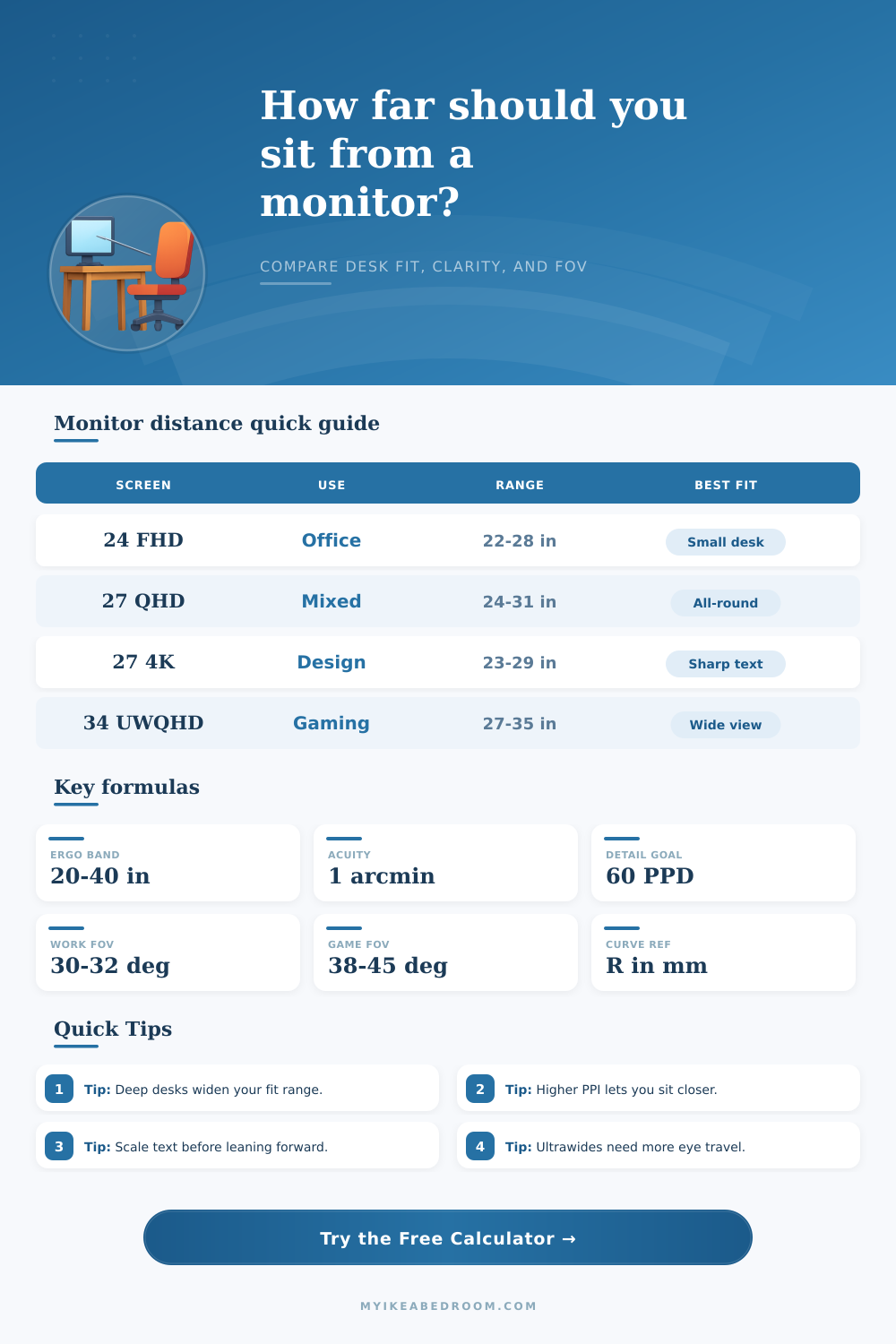
| 24 in 1080p 16:9 | 1920 x 1080 | 92 | 37.3 in / 94.7 cm | 22 to 28 in |
| 27 in 1440p 16:9 | 2560 x 1440 | 109 | 31.5 in / 80.0 cm | 24 to 31 in |
| 27 in 4K 16:9 | 3840 x 2160 | 163 | 21.0 in / 53.3 cm | 23 to 29 in |
| 34 in 3440 x 1440 21:9 | 3440 x 1440 | 110 | 31.2 in / 79.2 cm | 27 to 35 in |
| 49 in 5120 x 1440 32:9 | 5120 x 1440 | 109 | 31.8 in / 80.8 cm | 30 to 39 in |
| Curvature | Radius meaning | Curve-match distance | Best use | Desk reality |
|---|---|---|---|---|
| Flat | No radius target | Not used | Multi-monitor and editing | Distance is driven by width and clarity. |
| 3000R | 3.0 m radius | 118.1 in / 300 cm | Gentle curve workstations | Usually far beyond a normal desk. |
| 1800R | 1.8 m radius | 70.9 in / 180 cm | Wide gaming screens | Mostly a reference, not a hard target. |
| 1500R | 1.5 m radius | 59.1 in / 150 cm | Immersive ultrawides | Still longer than many desk setups. |
| 1000R | 1.0 m radius | 39.4 in / 100 cm | Close-wrap sim rigs | The first radius that often fits deep desks. |
| Reference | Formula | What it does | Source |
|---|---|---|---|
| OSHA ergonomic band | 20 to 40 in | Defines a broad comfort zone for upright monitor use. | OSHA monitor guide |
| CCOHS monitor band | 40 to 74 cm | Useful secondary check for office-style monitor work. | CCOHS monitor positioning |
| Pixel-acuity floor | pitch x 3438 | Finds the minimum distance where one pixel shrinks to about 1 arcminute. | Texas Instruments PPD note |
| Horizontal FOV | width / (2 x tan(angle / 2)) | Converts panel width and target immersion into distance. | TI field-of-view explanation |
| Curvature match | distance = R radius | Shows the published radius point for curved monitors. | ViewSonic curvature guide |
| Preferred close-work range | 52 to 73 cm | Research-backed check when text is near the acuity limit. | PubMed study abstract |
A person have to choose an appropriate viewing distance from there monitor to prevent strain and fatigue in there eye and body. If the monitor are too close to the person, the eyes has to strain to focus on the screen. If the monitor is too far from the person, the person have to strain to see the screen close.
Thus, the person must balance each of these factor to determine the more appropriate viewing distance for that individual. Another of these factor is the depth of the monitor desk. Most desk are between 20 and 24 inch deep.
How to Set the Right Distance from Your Monitor
If the individual has a deep desk, then they may be able to place the monitor further away from them. If the individual has a shallower desk, they may have to increase the text scale on the screen to allow the text to be readably. The third of these factor is the pixel density of the monitor.
Monitors with low pixel densities, like those with 90 pixels per inch, has to be viewed from further away to avoid viewing the individual pixel on the screen. Conversely, monitors with high pixel densities, like a 27” 4K monitor, allow the individual to sit closer to the screen. Additionally, if the individual increase the text scaling on a screen, the ideal viewing distance will increase.
The fourth of these factor is the shape of the monitor screen. If it is a curved monitor screen, the radius of the screen curve creates a “sweet spot” on the screen where the image is focus. An individual may not be able to reach this sweet spot with there shallow desk.
At the correct viewing distance for a curved screen, the edge of the screen will not be distorted. A flat screen does not have a curvature to the screen. Thus, the individual must find a balance between the width of the screen and their field of view.
The fifth of these factor is the intended use of the monitor. For office work, an individual may prefer a smaller field of view. For gaming, they may prefer a larger field of view.
For instance, an individual that design graphics may use a field of view of 32 degrees whereas someone that play games of simulation may want to use 38 degrees of field of view. This field of view should not be too large or too small in comparison than the width of the screen. The individual should also consider the height of the monitor when setting up the monitor for the individual.
The top bezel of the monitor should be at the eye level of the individual. Additionally, the height should not be at the chin level of the individual. Incorrect height may lead to strain in the neck.
Another consideration is the height of the monitor arm that the monitor is placed upon. Using an monitor arm may allow the individual to save space on their desk. Thus, an individual who use an monitor arm may be able to move the monitor further away from them.
In addition to these factor, the individual can also perform some test to determine if the viewing distance is appropriate for themselves. For instance, the individual may adjust the viewing distance until the monitor sit in a way that is comfortable for themselves without leaning on either side of the monitor. Additionally, if the individual finds that their blink rate is decrease or that they are experiencing fatigue in their eyes, then the viewing distance may be incorrect.
Finally, if the lights in the area are very bright, the individual may be leaning forward on the monitor in order to avoid the glare. Thus, they may need to sit further from the monitor. By considering each of these factor, an individual can set up there monitor to minimize physical discomfort.