Monitor Height for Eye Level Calculator
Calculate monitor center height, top edge height, stand lift, screen angle, and desk clearance from your eye height, posture, screen size, and stand hardware.
Pick a workstation scenario, then adjust the measurements to match the person, desk, monitor, and stand being used.
Monitor height summary
Enter your measurements to set a monitor height that keeps the visual center slightly below eye level.
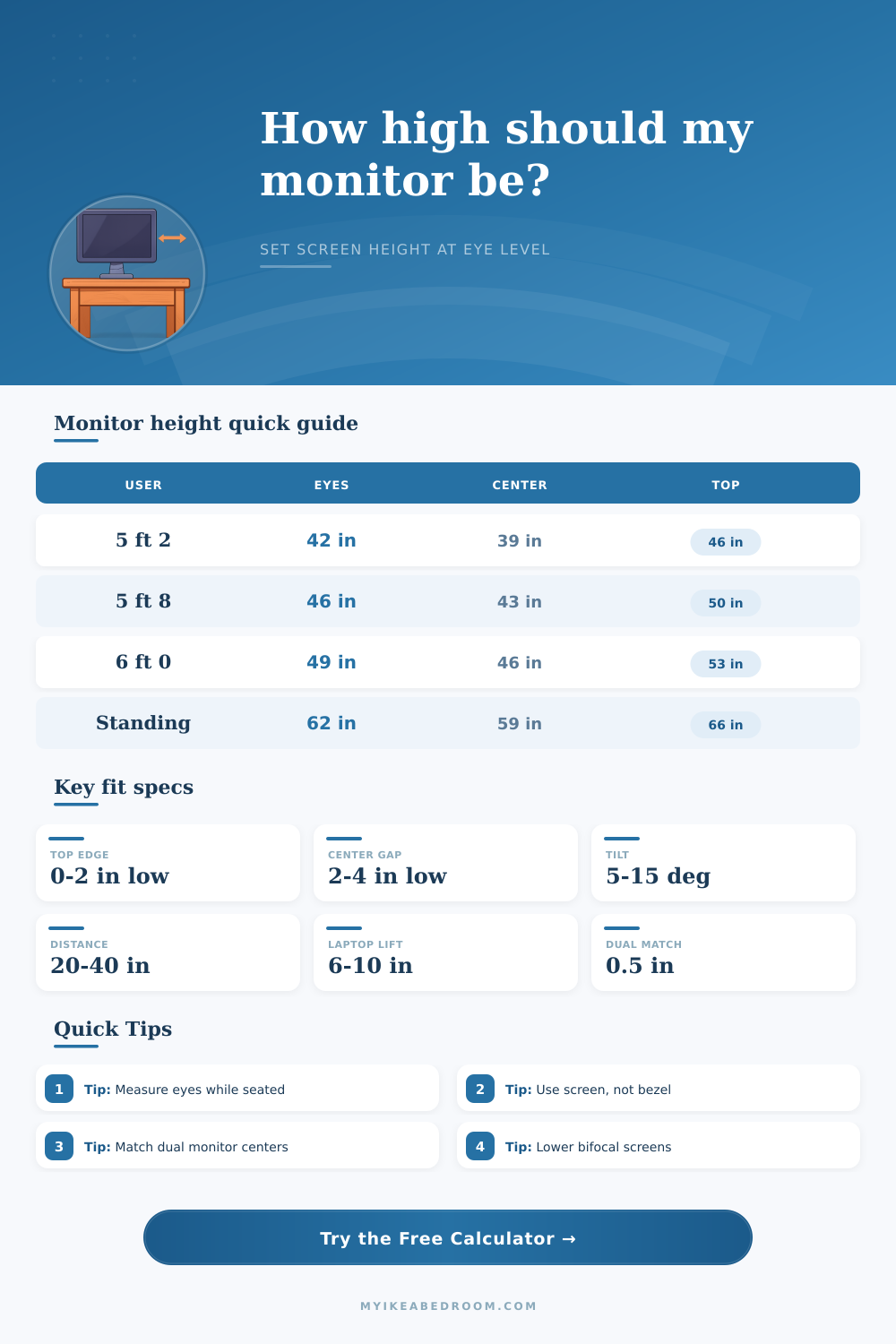
Rule used: most desktop screens feel neutral when the top edge is at eye level or a little below it, while the screen center sits several inches below the eyes.
Hardware check: the calculator compares the target visible screen bottom with the current stand height, minimum stand height, and maximum stand height.
| Screen type | Diagonal | Aspect ratio | Visible height | Height impact |
|---|---|---|---|---|
| Compact office monitor | 24 in | 16:9 | 11.8 in | Center is 5.9 in above visible bottom |
| Standard home office monitor | 27 in | 16:9 | 13.2 in | Center is 6.6 in above visible bottom |
| Large productivity monitor | 32 in | 16:9 | 15.7 in | Top edge may sit close to eye level |
| Ultrawide display | 34 in | 21:9 | 13.4 in | Width changes reach more than height |
| Laptop screen on riser | 15.6 in | 16:9 | 7.6 in | Often needs 6 to 10 in of lift |
| Use case | Top edge target | Center target | Typical downward gaze | When to adjust |
|---|---|---|---|---|
| General desktop work | 0 to 2 in below eyes | 2 to 4 in below eyes | 4 to 8 degrees | Raise if neck bends forward |
| Reading dense text | Level to 1 in below eyes | 2 to 3 in below eyes | 3 to 6 degrees | Use more zoom before raising too high |
| Progressive lenses | 2 to 5 in below eyes | 4 to 7 in below eyes | 8 to 14 degrees | Lower screen if chin tips upward |
| Standing desk | 0 to 2 in below standing eyes | 3 to 5 in below eyes | 4 to 9 degrees | Recheck after changing shoes or mat |
| Very large display | 1 to 4 in below eyes | 3 to 6 in below eyes | 5 to 10 degrees | Lower if top edge feels dominant |
| Hardware setup | What to measure | Useful range | Calculator input | Result to watch |
|---|---|---|---|---|
| Built-in monitor stand | Floor to visible screen bottom | 15 to 26 in | Current, min, max bottom height | Stand change and range rating |
| Monitor arm | Screen bottom at lowest and highest arm positions | Broadest practical range | Minimum and maximum bottom height | Whether target is reachable |
| Desk riser or shelf | Desktop height plus riser plus bezel gap | 2 to 8 in of lift | Current bottom height | Raise or lower amount |
| Laptop riser | Floor to visible screen bottom | Often 18 to 24 in seated | Small screen diagonal and current bottom | Lift amount to eye line |
| Dual monitor pair | Both visible centers from floor | Within 0.5 in | Second monitor center offset | Dual mismatch warning |
| Workspace | Eye height | Monitor | Target bottom | Target top |
|---|---|---|---|---|
| Small bedroom desk | 43 in | 24 in 16:9 | 34.7 in | 46.5 in |
| Standard desk and 27 in screen | 46 in | 27 in 16:9 | 36.4 in | 49.6 in |
| Tall seated user | 50 in | 32 in 16:9 | 38.8 in | 54.5 in |
| Standing desk | 62 in | 27 in 16:9 | 51.4 in | 64.6 in |
| Progressive lenses | 46 in | 24 in 16:9 | 31.7 in | 43.5 in |
Measure from the working posture. Chair height, shoes, standing mats, and cushion compression all change eye height, so measure while sitting or standing exactly as you work.
Use the visible screen area. The calculator uses the visible panel bottom, center, and top because bezels, laptop chins, and monitor frames do not affect gaze height.
Match centers on dual monitors. Align the visual centers when both screens are used equally; align the primary screen if one display is clearly dominant.
Lower the screen for progressive lenses. If you lift your chin to find the reading zone, a lower top edge usually feels better than a textbook eye-level setup.
People think neck pain is because they sit too much. But it’s usually just that their screens are positioned incorrecty. They’re sitting right, sure. But their screen are off by a couple inches vertically. And this causes a low grade strain the whole time. That doesn’t feel like an injury. That feels like being tired. Not as in “I need to get more sleep.” As in “This thing I’m doing every second of every waking hour is making me tired.”
And it’s got nothing to do with sitting less. It has everything to do with positioning your line of sight such that your eyes aren’t fighting gravity all day. The calculator above does this for you. But knowing why the numbers make sense makes you believe what they say. It sounds too easy, but that’s the point.
Why Your Screen Height Causes Neck Pain
The middle of your screen need to be just below eye-level. It should not be on eye level. Ergonomic recommendations typicaly run from four to eight degrees down. It allows you to have your neck in a neutral state, neither looking up nor leaning forward. If the top edge of your monitor hits eye level, then you’re able to scan the whole display without having to move your head. All you do is move your eyes. And that’s where the difference lies: Moving your head vs. You just move your eyes.
Most folks mess up here: measuring their eye height properly. Your working posture makes all the differance. It doesn’t matter if you stand beside a ruler. Your feet are pressed in your footwear, chair cushions compress under you, or you lean forward and backward. You will never measure eye height to the same distance between your pupil regardless of where you go. This is why the tool requests the eye height be measured while in your actual working posture. Thick-soled shoes at home? Flats at the office? Those two numbers vary wildly.
Sit down with care. Find that true horizontal line by having someone mark it on the wall or using a mirror. It’s tedious, but it anchors all the other calculations based off the page. This makes it even more complicated: Screen sizes. Diagonal measures is calculated the same way for a twenty-four-inch panel and a thirty-two-inch monitor, but they face quite different vertical dilemmas. The bigger screen is much taller and its center point are further from the bottom edge. If treated equally, big screen would end up looking too high.
Here’s where aspect ratio alters the math: the visible-height breakdown on page shows just how that happens. That ultrawide twenty-one-by-nine display is wide but not super-tall. From the top of its screen down to its center point, it’s sitting lower then a standard sixteen-by-nine screen. And if you ignore that distinction, you’ll end up with an ultrawide positioned too high, requiring you to crane your neck downward to reach the lower portion of the screen.
It also accounts for your own hardware limitations. You don’t want to assume all desks is perfectly adjustable. Some built-in stands will have limited min/max heights and won’t necessarily hit your ideal height. While monitor arms can provides more adjustability, you’ll need to calibrate them properly. It takes into account your existing stand height as well as the physical constraints of your hardware to tell you whether you’re realistically within striking distance. If it returns an answer suggesting you need a lift beyond what your hardware supports, then you’ll already know instantly that you’ll needed either a riser (or upgrade). Compromising on equipment just because you like a neutral posture is counterproductive and harmful to your long-term health.
Things get even trickier for people who wear bifocals or progressives. In those glasses, there’s a portion of the lens specifically for reading that are below where the distance vision area is. If you center your screen on the distance vision side like you would with traditional single-vision glasses, your eyes will have to lift up to look through the right part of the lens. This means you’ll end up tilting your chin up when looking at your computer. This is not good for ergonomics. For that situation, the tool has its own mode which lowers the center height of the target to align it with your lenses viewable field. It’s a small change, but makes a huge difference when using the tool day-to-day.
So basically, establishing your work environment is something that happens iteratively. Plug in your numbers, get a target height, adjust your monitor, live with it for a few days. Still feeling tight in the shoulders? Lower it another inch. Can’t read the tiny text without leaning forward? Raise it a bit; make the text bigger. There’s no expectation that it will be perfect the first time. But you’re drawing a line here, a baseline for respect toward your own anatomy. And when you draw that line right, the rest of the day feel so much lighter. You begin to work with your body instead of against it.