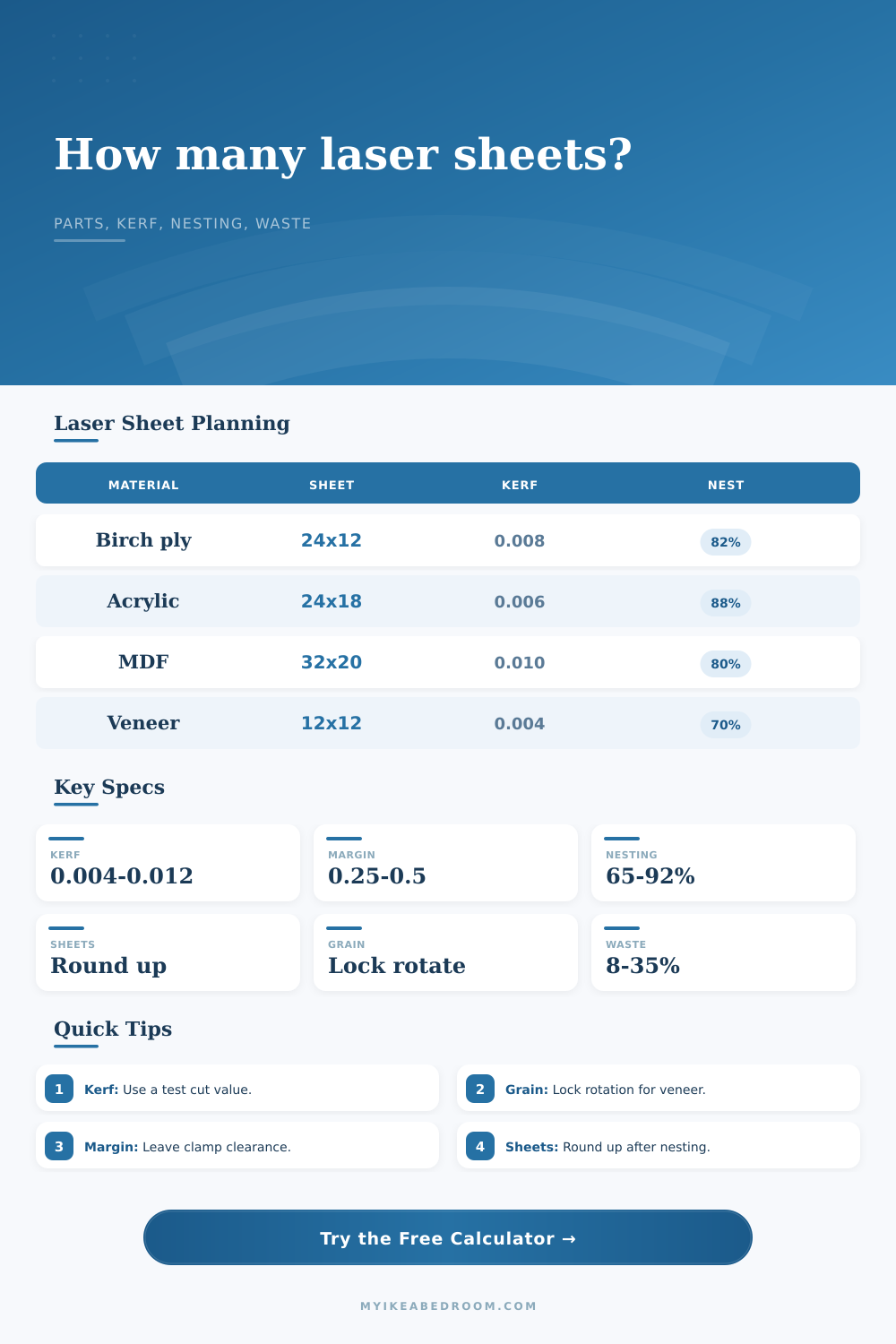
Laser Cut Sheet Quantity Calculator
Plan flat laser-cut projects by part dimensions, count, sheet size, kerf, margins, nesting efficiency, and grain direction before you commit material.
▦Laser Project Presets
Choose a starting layout, then adjust the dimensions and efficiency for your exact cut file.
⚙Sheet and Part Inputs
Cutting Plan Result
▣Material Planning Grid
ℹKerf and Nesting Reference
| Material | Typical Kerf | Nesting Range | Grain Rule |
|---|---|---|---|
| Birch plywood | 0.006-0.010 in / 0.15-0.25 mm | 75-88% | Rotate only if face grain allows it |
| MDF / hardboard | 0.008-0.012 in / 0.20-0.30 mm | 72-85% | No visual grain, rotation usually works |
| Cast acrylic | 0.004-0.008 in / 0.10-0.20 mm | 82-92% | Rotate freely unless scratches matter |
| Veneer | 0.003-0.006 in / 0.08-0.15 mm | 62-78% | Keep long pieces with the grain |
▤Common Laser Sheet Sizes
| Sheet Size | Usable with 0.25 in Margin | Area | Best For |
|---|---|---|---|
| 12 x 12 in | 11.5 x 11.5 in | 144 sq in | Tokens, inlays, sample cuts |
| 24 x 12 in | 23.5 x 11.5 in | 288 sq in | Small panels and drawer parts |
| 24 x 18 in | 23.5 x 17.5 in | 432 sq in | Acrylic signs and organizers |
| 32 x 20 in | 31.5 x 19.5 in | 640 sq in | Furniture templates and jigs |
▥Preset Project Breakdown
| Project | Part Size | Count | Planning Note |
|---|---|---|---|
| Drawer dividers | 2.5 x 8 in | 48 | Grain may follow divider length |
| Acrylic signs | 6 x 3 in | 18 | High nesting works for rectangles |
| Veneer inlay strips | 0.5 x 10 in | 90 | Rotation is usually locked |
| Routing jigs | 7 x 11 in | 12 | Use wider edge margins for clamps |
✦Planning Tips
Suddenly, there’s a pile of vector files in front of you and maybe you’ve overestimated what it takes to cut something out. Moving from single designs to batch production can be like this. Cutting one item is different then cutting forty-eight.
It’s not just about quantity, its about waste, and geometry, and the space that it take up as the laser beam moves across surface. The look of the product becomes secondary; now you’re thinking more about the pack-out, how do all these piece fit onto a small sheet?
How to Plan Laser Cutting Jobs
Failing to consider kerf is the single biggest mistake. The kerf is the width of the material removed during a cut, usualy between six and ten thousandths of an inch for wood. Nesting fifty parts doesn’t sound like much, but it seems huge if you don’t compensate for it.
Without kerf compensation, things end up just a little bit to small, and the joints is loose. The calculator compensates for this by adjusting size of each packed part. Experiment with a test cut comb gauge in whatever material you’re using to determine what kerf actualy is.
Instead of trusting what’s written in the machine manual, this test cut give you an honest-to-goodness coefficient for your particular configuration. Another way we tend to be wrong with our guesses are in nesting efficiency.
So if we have an 80% full sheet of parts, I’m going to require 1.25 sheets. No? Wrong. Usually nesting is not as good as that.
Parts that is rectangular nest well together and often get as high as 90% utilization. Mixed inventory / organic shaped parts drop it dramaticly down to as low as 70%. That’s the nesting % the tool will ask you for so that you can account for this variation.
Tend towards overestimating your waste rather than being out of materials halfway through your job if you’re cutting something complex. There is limitations of grain direction as well.
Turning an object ninety degrees might be most efficient from a geometry perspective with plywood or veneered ply like Birch, but it look bad. Grain has to match the finished assembled piece. In those cases you pin the rotation in settings.
That will cost you some packing efficiency as software can’t turn pieces over to fit odd spaces when grain is important. More materials mean higher costs to make it look good. This is not a problem with acrylic, which tends to nest better with fewer surprises and higher, more consistant nesting percentages.
You won’t think about margins until your clamps start slipping. When you’re cutting, you want a buffer zone along the edge of your sheet to ensure that material stays flat throughout the process. Typically, leaving an ¼” margin on all sides does this.
That’s just enough room so the edges don’t warp or burn when hot. It cuts down on usable surface area right out of the gate. A twenty four by twenty four inch sheet becomes a twenty three by twenty three inch sheet with cutting space, this small area loss adds up over many sheets.
Laser cutting is wasteful. There are going to be scrapes from corners, strips left over, and test pieces that didn’t worked out. Expect 10-15% on top of your parts count.
That’ll cover any alignment errors, misfires, and items that got burned because the focus isn’t right. For this reason, there’s a place for allowance in the calculator. Why waste time ordering additional material when you can just cut it yourself?
These variables are driven by material selection. MDF produces more dust and has a slightly wider kerf than plywood. Acrylic also cuts cleanly, it has a narrower kerf and must be nested carefully to prevent heat stress cracks.
Knowing that, you can set your inputs accordingly. The reference data provided with the tool describes the expected range of values based off common materials. That’s your starting baseline.
In the end, it’s all about saving money by doing some planning accuratey. By making you specify your nesting efficiency, margin, and kerf, the calculator eliminate guessing. It turns a “gut” feeling for how many sheets to get into something concrete.
Instead of hoping, you have data with which to make an informed decision. Next time you’re staring at a pile of files, you’ll know exactly how many sheets you should of pull.
When you stop assuming you don’t need to account for the space between the cuts, the math isn’t so complicated.