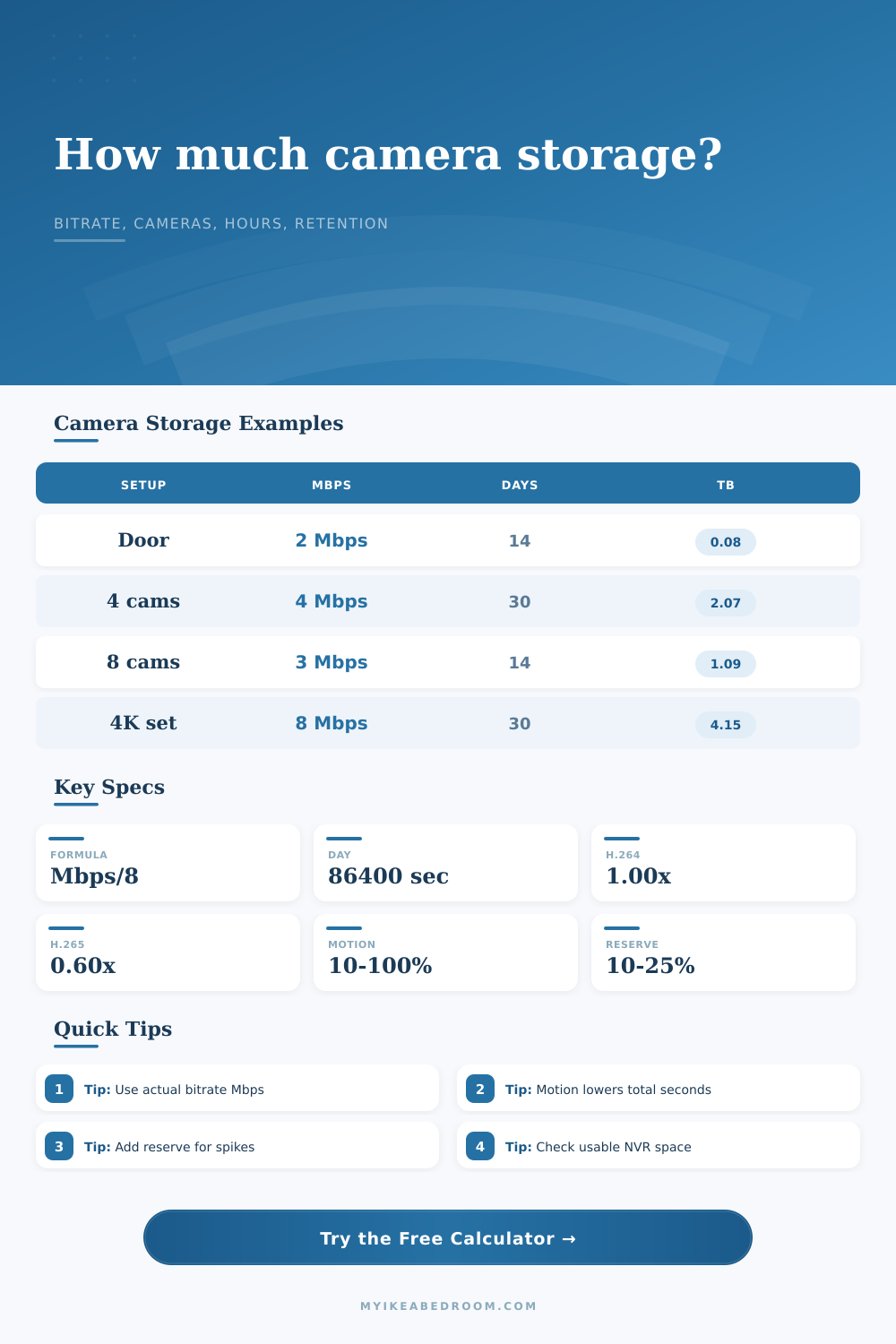
Security Camera Storage Calculator
Estimate camera recording storage from bitrate Mbps, camera count, hours per day, retention days, motion recording percentage, compression, audio overhead, storage reserve, and NVR overhead.
▶Recording Presets
Pick a common security recording profile, then adjust the bitrate, retention, motion percentage, and overhead fields for your actual camera settings.
⚙Storage Inputs
💾Drive Fill Preview
The meter compares estimated storage with the selected drive size after overhead.
🧮Formula Used
GB = Mbps x seconds / 8 / 1000
TB = GB / 1000
Security Camera Storage Results
Calculation Breakdown
📊Storage Planning Specs
🗂Reference Tables
| Camera profile | Typical Mbps | Continuous 30 days | Planning note |
|---|---|---|---|
| 720p low detail | 1-2 Mbps | 324-648 GB per camera | Use for small indoor views with limited detail needs. |
| 1080p general | 2-4 Mbps | 648 GB-1.30 TB per camera | Common planning range for doors, halls, and rooms. |
| 1440p / 2K detail | 4-6 Mbps | 1.30-1.94 TB per camera | Useful where faces, packages, or plates need more pixels. |
| 4K high detail | 8-12 Mbps | 2.59-3.89 TB per camera | Storage rises quickly when retaining continuous 4K video. |
| MJPEG snapshots | 12+ Mbps | 3.89 TB+ per camera | Use the measured stream rate when frames are less compressed. |
| Compression | Factor | Effect on GB | Best use |
|---|---|---|---|
| H.264 standard baseline | 1.00x | No reduction | Baseline when the entered Mbps already reflects H.264. |
| H.264 smart stream | 0.82x | 18% lower | Scenes with repeated backgrounds and steady lighting. |
| H.265 / HEVC typical | 0.60x | 40% lower | Modern NVRs that support efficient video encoding. |
| H.265 smart stream | 0.45x | 55% lower | Low-motion views with compatible playback support. |
| MJPEG / heavy stream | 2.20x | 120% higher | Use only when the stream truly lacks inter-frame compression. |
| Recording pattern | Motion % | Hours from 24 | Use when |
|---|---|---|---|
| Quiet indoor room | 5-15% | 1.2-3.6 hrs | Room is empty most of the day. |
| Entry door or porch | 15-35% | 3.6-8.4 hrs | Short events happen throughout the day. |
| Driveway or sidewalk | 35-70% | 8.4-16.8 hrs | Cars, shadows, and street activity trigger often. |
| Busy shop or workshop | 70-90% | 16.8-21.6 hrs | People or machinery move for most active hours. |
| Continuous recording | 100% | 24 hrs | Every selected hour is stored. |
| Scenario | Input profile | Retention | Estimated storage |
|---|---|---|---|
| Single entry camera | 1 cam, 2 Mbps, 25% motion | 14 days | About 76 GB with H.264 and 15% reserve. |
| Four-camera home | 4 cams, 4 Mbps, continuous | 30 days | About 2.48 TB with reserve. |
| Eight-camera exterior | 8 cams, 3 Mbps, 50% motion | 21 days | About 1.30 TB using H.265 typical. |
| Four-camera 4K set | 4 cams, 8 Mbps, continuous | 30 days | About 2.98 TB using H.265 typical. |
| Vacation motion plan | 3 cams, 2.5 Mbps, 18% motion | 60 days | About 0.50 TB with reserve. |
💡Storage Planning Tips
Mount the cameras. Configure the Wi-Fi. Sit down to buy a hard drive. And that’s where the math go wrong. Storage is sold in gigabytes. Cameras is advertised in megabits. Your drive are full after ten days of footage. You want thirty days of footage. That confusion usually happen because people mix storage weight with network speed. They’re subtly different things but cost people money if ignored.
In fact, the math to do that calculation has already been done for you by calculator above, which converts from abstract bitrates to more concrete terabytes. All you have to do is type in how many camera you’re using, and what bitrate you’ve set them all at. The bitrate is key variable here. Consumer cameras typically record at speeds of two to eight megabits per second. Sounds low… But when you multiply that by 3,600 seconds per hour and then again by 24 hours per day, you end up with about thirteen gigabytes of data per day from a single four-megabit camera running constant. Four of those cameras will goes through a typical four-terabyte drive in just over a months time.
How to Calculate Your Camera Storage Needs
And that’s why the retention field comes into play. Want to keep seven days’ worth? You can get away with something smaller. Need to keep a full thirty days? Time to break out big bucks.
Add in compression and the math gets real interesting. You can choose between H.264 or H.265. The new standard packs more data into a smaller amount of space. It cuts down on storage by as much as forty percent compared to older H.264 standard. Switch over to H.265 if possible (and if your NVR supports it), and check out how much less storage you need. It’s one of the fastest ways to cut back on hardware costs. The calculator takes all this into account for you, so it’ll show what the real world impact will be instead of purely theoretical maximums.
Pulling levers: Motion recording. You don’t need all 24 hours every day recorded. There’s nothing going on in your living room at three in the morning. Slash the load by setting the motion percentage to some realistic number; say twenty or thirty percent. This is treated directly as a multiplier by the calculator. Use twenty percent of the storage if you’re recording only twenty percent of the time.
The reference tables on the page break out common motion percentages for different locations. A backyard fence isn’t as active as the front door. A busy shop floor has near-constant movement. Choose the percentage matching your real-world environment, don’t guess.
Finally, apply some buffer. There’s a field in the calculator called storage reserve. Depending on how they count it, all drive makers does this different. Your four-terabyte drive doesn’t have four terabytes of actual usable video space. Also, your file system will consume additional space with metadata and indexes. Fifteen to twenty-five percent reserve adds a bit of insurance against filling up the drive and having the camera stop mid-week when there was suspicious activity or a bunch of storm footage. That little extra bit of protection means your camera won’t shut down, it is an insurance policy. You should of used that buffer.
You can see the visual meter for how far you’ll fill up the drive size you’ve selected. It’s a quick way to check if things are okay. Does the bar look full? Is it red? Yeah you might have a problem, either go with a larger drive or use better compression. Is it barely moving? Maybe you’re over-provisioned. Find that sweet spot between cost and coverage. Don’t pay too much for storage and don’t lose your footage when you need it.
First, enter your bitrate, camera count, and then set the retention level that’s right for you. Switch on the compression slider based off your equipment. Hit compute. You have a solid point of reference for your next purchase. It all comes down to knowing exactly what you’re measuring when planning storage. Divide up the bytes from bits, continuous from motion, and everything falls into place. Your wallet stays safe. And so does your footage.