Projector Lumens Calculator
Estimate required projector lumens, achieved screen brightness, ambient light margin, and practical screen size from screen dimensions, gain, room light, throw mode, image mode, and projector derating.
Pick a real viewing setup, then fine tune the screen size, gain, lux level, throw mode, projector rating, wall reflectance, and target brightness.
| Viewing purpose | Typical target | Room light tolerance | Best screen style |
|---|---|---|---|
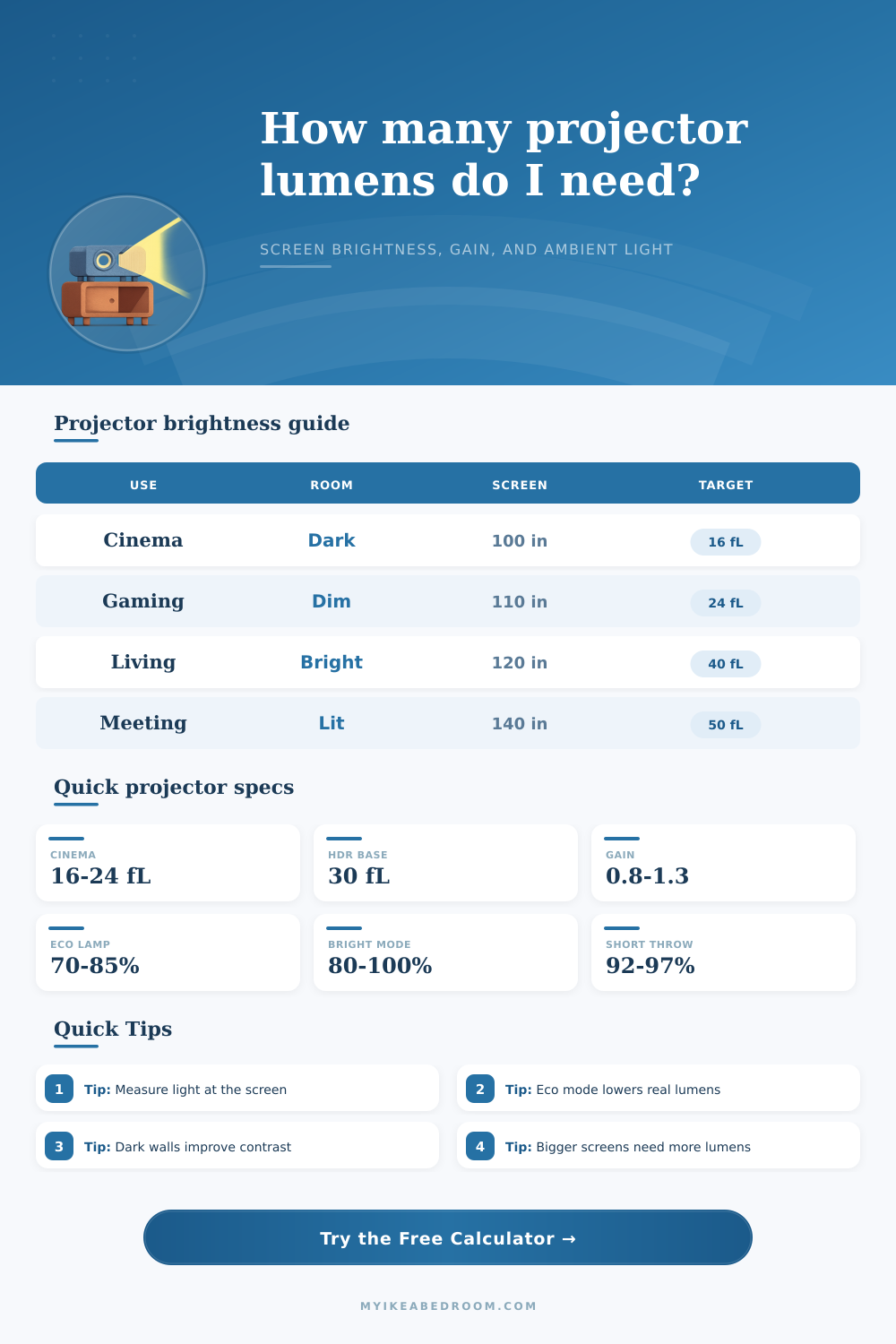
| Movie night in a dark bedroom | 16 to 24 fL / 55 to 82 nits | Very low ambient lux | Matte white or gray, 0.8 to 1.1 gain |
| HDR home theater baseline | 30 to 45 fL / 103 to 154 nits | Low ambient, dark walls preferred | Higher gain white or controlled ALR |
| Gaming, sports, and TV-style viewing | 24 to 40 fL / 82 to 137 nits | Dim lamps or shaded windows | Neutral white, gray, or ALR screen |
| Conference room or classroom | 40 to 65 fL / 137 to 223 nits | Overhead lighting and bright walls | Screen with gain or high-reflectance wall |
| Diagonal | Image width | Image height | Screen area |
|---|---|---|---|
| 80 inch | 69.7 in | 39.2 in | 19.0 sq ft |
| 100 inch | 87.2 in | 49.0 in | 29.7 sq ft |
| 120 inch | 104.6 in | 58.8 in | 42.7 sq ft |
| 135 inch | 117.7 in | 66.2 in | 54.1 sq ft |
| 150 inch | 130.7 in | 73.5 in | 66.7 sq ft |
| Projector condition | Derating to enter | Image mode factor | Why it matters |
|---|---|---|---|
| New laser or lamp in bright mode | 90 to 100% | Bright or vivid | Closest to the published lumen rating, often less color accurate. |
| Calibrated SDR cinema mode | 75 to 90% | Calibrated cinema | Better color usually trades away some measured lumens. |
| Eco mode or quiet bedroom use | 60 to 80% | Eco cinema | Lower fan noise and light output, useful for small dark rooms. |
| Wide color filter or HDR color mode | 50 to 75% | Wide color or HDR filter | Color filters can strongly reduce usable screen brightness. |
| Room condition | Ambient lux at screen | Wall reflectance | Brightness strategy |
|---|---|---|---|
| Blackout bedroom | 0 to 5 lux | 5 to 20% | Prioritize contrast, quiet mode, and accurate cinema settings. |
| Dim living room lamps | 10 to 40 lux | 25 to 55% | Use a brighter target and avoid very oversized screens. |
| Bright conference room | 80 to 300 lux | 55 to 85% | Use more lumens, smaller screen area, and higher contrast slides. |
| Outdoor dusk | 20 to 150 lux | Open air | Start smaller until twilight, then expand screen size if possible. |
Gain: usually 0.9 to 1.1
Balanced color and wide viewing angle for controlled rooms.
Gain: often 0.7 to 0.9
Can deepen blacks, but needs extra lumens for the same fL.
Gain: about 0.6 to 1.3
Rejects some off-axis light, with stricter viewing geometry.
Gain: about 0.5 to 0.9
Convenient, but texture and color lower predictable brightness.
Measure the screen plane. A lux reading near the couch can be misleading; use the wall or screen surface where the projected image lands.
Leave headroom for aging. If the margin is barely positive, a lamp in eco mode or a dusty optical path can push the image below target later.
Achieving the correct brightness using a home projector can be a difficult task. A projector must work in harmony with the room in which it is to be used and the screen on which the image will be displayed. If a projector, a room, and a screen dont work together correct, then the brightness of the projector will be lost.
A projector lumens calculator can help to solve this problem by accounting for the way in which a projector and a room may not be compatible with one another. The most important measurement of brightness is foot-lamberts, or fL. The foot-lamberts measurement determine how bright the image will look on the screen.
How to Use a Projector Lumens Calculator
However, the lumen measurements that are published on projectors do not measure the foot-lamberts of the projector. Typically, the brightness of the projectors image when measured in ideal laboratory conditions calculates the foot-lamberts of a projector. Most projector advertisements will use this brightness to advertise the projectors lumen ratings.
However, in a real room, the projector will not achieve the same brightness as in these ideal conditions. To calculate foot-lamberts, the projector lumens calculator will use screen dimensions, screen gain, ambient light, and the real output of the projector. Screen gain is a factor in the projector lumens calculator that determine how much light reaches the audience eyes.
Screen gain can be set at any number. Screens that is matte white has a gain of 1.0. A screen that has a gain of 1.0 will distribute the light from the projector evenly across the screen without increasing the brightness of the screen.
High-gain screens will increase the brightness of the screen, but they will also reduce the viewing angle of the screen. Gray screens with a low gain can improve the contrast of screens that are used in dark rooms. Because screen gain is a multiplier of brightness, changing the gain setting will change the amount of projector lumens that is required.
Ambient light can reduce the contrast of the image that is displayed on the screen. Ambient light comes from numerous sources in the room, such as the windows and lamps. Lux is the unit of measurement of ambient light that is used at the screens surface.
The projector lumens calculator will measure the lux that is entering the screen and add an ambient light penalty to the brightness that is targeted for the projector. This ambient light penalty will account for the brightness of the light that comes from the room and cannot be blocked. If the result of the projector lumens calculator is a positive margin, the projector is bright enough to handle the lamps diming over time.
A negative margin will result in the screen looking dim. There are also a variety of settings for the projector that can affect the brightness of the screen. These include the throw mode and the image mode.
Projectors that use standard optics will not lose much brightness. Projectors that use short-throw and ultra-short-throw optics will lose some of their brightness. Some projector modes will reduce the brightness of the projector to improve the accuracy of the colors that are displayed on the screen.
Bright and vivid image modes will retain the brightness of the projector. More calibrated modes will reduce the brightness to improve the contrast and colors on the screen. Some modes that enhance contrast will cut the brightness of the projector in half.
These settings are accounted for in the projector lumens calculator as multipliers of the projectors brightness. The color of the walls in the room will also affect the brightness and contrast of the image on the screen. Light-colored walls will reflect the light coming from the screen and the projector into the screen.
This reflected light will increase the brightness of the screen but also decrease the contrast. Dark-colored walls will absorb the light and increase the depth of the blacks in the screen. Projector lumens calculators ask for the reflectance of the walls so that the brightness calculator can account for the difference in brightness between a dark wall and a white wall.
The size of the screen can have a major effect on the brightness of the projector. As the size of the screen increases, the area of the screen increases. The brightness of the projectors image will be diluted over a larger screen area.
The projector lumens calculator will calculate the diagonal size of the screen based off the brightness that is calculated. If the projector lumens calculator recommends a diagonal size of the screen that is smaller than the size of the screen that is currently being used by the audience, the projector will have to produce more lumens to maintain the brightness of the screen. Alternatively, if the size of the screen that is calculated is larger than the current size of the screen, the screen can be enlarged without having to purchase a new projector.
The brightness that is targeted by the projector will depend upon the use of the projector. For instance, if the projector is to be used in a dark room for film viewing, a target brightness of 16 to 24 foot-lamberts may be targeted. For use in a living room, where there may be more ambient light in the room, 40 foot-lamberts may be targeted.
The projector lumens calculator will not target brightness for the projector itself, but instead will calculate the amount of projector lumens that is required to reach each of these targets. Projectors tend to lose brightness over time. This derating of the projector is due to the age of the projector and the brightness of the projectors lamps.
A new projector will produce the brightness that is rated for the projector. After the projector has been manufactured, the brightness of the projector will decline with the age of the projector and with the use of eco modes on the projector. In the projector lumens calculator, derating is entered as a percentage of the projectors rated lumens.
To calculate the projector lumens calculator in the most accurate manner, the lux level at the screen should be measured. A lux meter can be used to measure the lux level, as well as smartphone applications that calculate lux. Additionally, the gain of the screen should be determined.
The color of the screen and the reflectance of the screen can determine the gain. If the gain of the screen is not known, the gain can be entered as 1.0 for screens that are matte white. The goal of using a projector lumens calculator is to find the range of brightness that is usable by the audience.
This usable range provides for the image to appear bright and beautiful to the audience, even under less than ideal viewing conditions in the room. Having extra lumens allows for headroom for the projectors lamps to fade in brightness over time. There are a variety of factors that effect the brightness of the projector, including screen size, screen gain, ambient light, throw optics, image mode, wall color, and the condition of the projectors lamp.
Using a projector lumens calculator allows an individual to manage each of these factors to ensure that the projector does not battle the remaining factors of the room in which the projector is installed.